Animation Creator: Flipbook 2D
- 3.2
- Rating
- 1.00M
- Installs
- Free
- Price
 Analysis by App-foxy
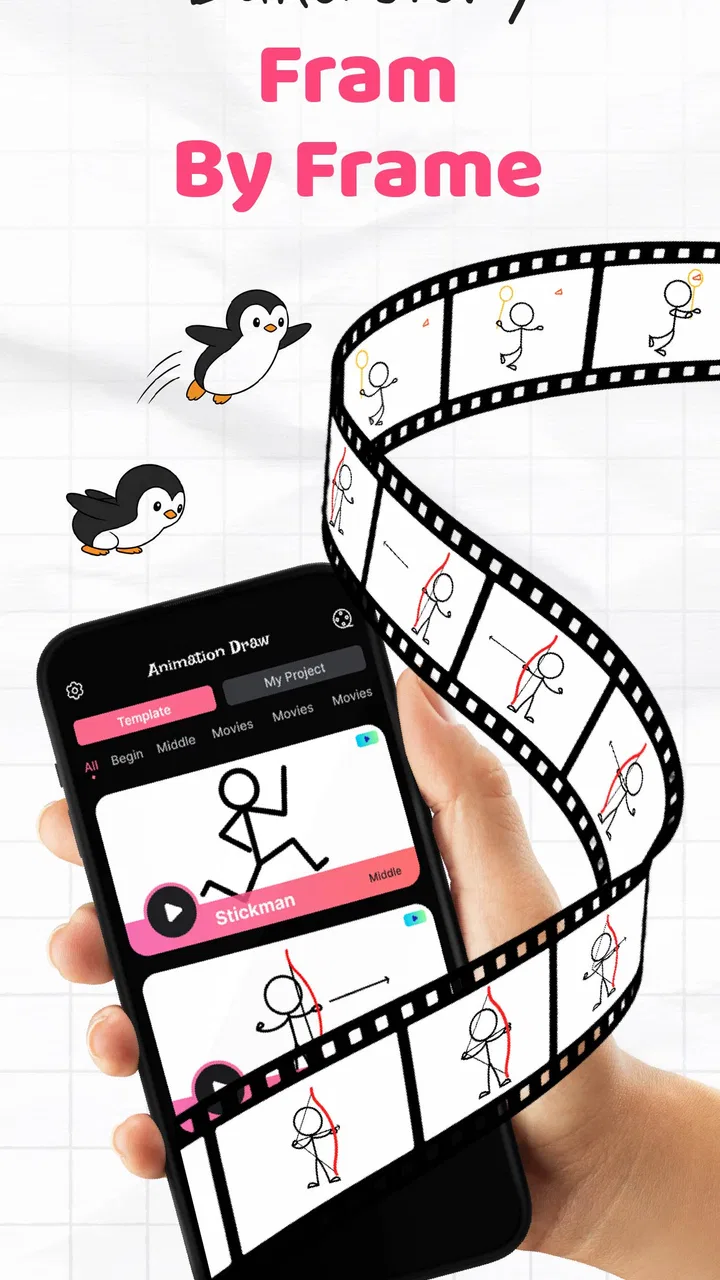
Animation Creator: Flipbook 2D is the kind of art app I open when I want to turn a rough drawing into movement without first learning a full desktop animation suite. It focuses on frame-by-frame work, so the basic idea is familiar: draw one image, add another, make a small change, and repeat until the sequence feels alive. In my experience, that direct approach makes it approachable for beginners, while still giving patient artists a useful space for short experiments.
It sits in the Art & Design category and is developed by CEM SOFTWARE LTD. The app is free to install, with optional purchases ranging from $2.99 to $29.99 per item. That combination makes it easy to try, but I would still spend time with the free experience before paying for anything. The average rating is 3.3 from around 8,500 ratings, and the app has passed one million installs, so it has attracted a sizable audience without presenting itself as a universally loved tool.
My overall impression is cautious but positive: this is best viewed as a compact flipbook workspace rather than a replacement for a professional animation program. It can be useful for learning timing, planning a looping sketch, making a simple social clip, or giving a child a gentle introduction to moving drawings. It is less convincing for complex productions where I need advanced compositing, detailed sound work, extensive layer management, or a highly polished export pipeline.
You May Also Like

 Blood Strike: 2.5 Anniversary
Blood Strike’s Loadouts Turn Every Drop Into a Tactical Gamble
A close look at Blood Strike’s custom loadouts: how fast access to signature weapons reshapes its battle royale rhythm, rewards preparation, and narrows the gap between fights.

 Pandora - Music & Podcasts
Pandora’s Music Is Easy to Start, but Harder to Recover
Pandora’s strength is its low-effort path from a seed to a station. Its weak spot is how much confidence it asks you to place in connection, setup, and quiet recovery.

 8 Ball Pool
 Is Built on Rivalries, Rematches, and Routine
A close look at the rivalries, rematches, shared routines, and unanswered safety questions that turn a quick pool match into a persistent mobile community.

 Samsung Music
’s Quiet Strength Is Playing What You Already Own
Its reach comes less from spectacle than from dependable access to a personal library. That simplicity is both the app’s strongest retention engine and its ceiling.

 AccuWeather: Weather Radar
AccuWeather Review: A Quick, Clear Forecast for Everyday Decisions
For everyday plans, the best forecast is the one you can understand quickly. AccuWeather makes rain timing, radar, and local conditions easy to act on, with a few trade-offs.

 Hill Climb Racing
Why Hill Climb Racing Still Turns Crashes Into One More Run
A tiny car, a bumpy hill and one more upgrade: Hill Climb Racing keeps resurfacing because its simple chaos makes every near-miss feel personal.
More From Our News Desk



What the drawing workflow feels like in everyday use
The appeal of Animation Creator: Flipbook 2D is that it keeps the central action visible: I draw directly on a frame and then build the next frame from there. That is a more understandable starting point than a timeline packed with unfamiliar controls. If I am testing whether a character can blink naturally or whether a bouncing ball has enough weight, I can concentrate on the spacing between drawings instead of wrestling with a large production interface.
A realistic everyday use would be a quick idea captured during a commute or between classes. I might sketch a character waving, create a handful of slightly different poses, and review the sequence immediately to see where the motion feels stiff. That instant feedback is valuable because a still drawing can look fine while the animation feels strangely fast, slow, or disconnected. The app’s flipbook structure encourages me to judge the movement itself rather than becoming attached to a single finished frame.
For a beginner, the most important habit is to start with a very small action. A bouncing dot, a blinking face, or a hand turning a page teaches more than beginning with a full walking cycle. I recommend drawing the first and last positions before filling in the middle. Once those key poses feel right, the intermediate drawings become easier to place, and the result is less likely to wobble randomly.
Another useful approach is to keep early frames deliberately simple. I would use a rough construction pass first, checking the rhythm and direction of the motion before spending time on clean lines or color. This saves effort when the timing needs changing. In a frame-by-frame app, polishing too soon is an easy trap: a beautifully drawn sequence can still need to be redrawn if the spacing is wrong.
Small techniques that make short animations better
One practical technique is to exaggerate the difference between important poses. Beginners often move an object only a tiny amount from frame to frame, which creates a sluggish result. I get a clearer sense of motion by placing the major positions farther apart, then adding drawings between them only where the action needs smoothing. This is especially helpful for a ball, a bouncing icon, or a character turning quickly.
I also find it useful to treat each animation as a test rather than a final illustration. Make a rough loop, watch it repeatedly, and ask one question at a time: does the object accelerate, does the face hold its expression long enough, or does the return to the first frame feel abrupt? This kind of focused review is more productive than changing every drawing at once.
A third insight is to plan the loop before adding detail. A seamless loop usually needs the ending pose to relate closely to the opening pose, but duplicating the first drawing blindly can create a noticeable pause. I would compare the final transition carefully and remove or adjust any repeated moment that makes the motion stall. That is a simple decision, yet it often matters more than adding texture or decorative color.
For touch-screen drawing, I would also zoom in for small corrections and then zoom back out to judge the whole image. Working too close can make line placement look accurate while the character’s proportions drift from frame to frame. Checking the full canvas regularly helps preserve consistency, particularly around faces, hands, and circular objects.
Who will get the most from it
This app makes the most sense for people who want an approachable entry into 2D animation. Students can use it to understand key poses and timing without committing to a complicated workflow. Casual illustrators may enjoy turning small doodles into loops. Parents looking for a creative activity for a child may also find the frame-by-frame idea easier to explain than a full digital art application, especially because the goal is immediately visible: make drawings change over time.
It can also suit creators who need quick visual experiments. I could use it to test a character gesture before recreating the idea elsewhere, or to make a rough storyboard-like motion study for a short project. The important distinction is that I would treat those experiments as planning material unless the final result meets my quality requirements.
People who already work professionally with animation may find the experience restrictive. If I need a large multi-scene project, sophisticated layer organization, detailed effects, audio synchronization, or precise production management, I would choose a more established animation package. A mobile flipbook tool is convenient, but convenience does not automatically equal depth.
I would also suggest skipping it if the main goal is editing existing video rather than drawing animation. Its appeal comes from creating movement through individual illustrations. Someone looking for transitions, color grading, camera effects, or a video-editing timeline would probably be better served by an editor designed around recorded footage.
Trust, controls, and moments that deserve attention
When I review a creative app, I do not judge trust from the design alone. I look for the choices presented during use, the way purchases are surfaced, and whether I can understand what I am doing before committing time or money. Here, the free price makes the first step straightforward, but the presence of in-app purchases means I would pay attention to any upgrade screen and read the wording carefully before confirming a transaction.
The purchase range is broad enough that I would not assume every useful capability is included at no cost. My practical advice is to explore the drawing workflow first, create a small test animation, and only then decide whether an optional item solves a real problem for you. If a purchase is presented while I am in the middle of a project, I would pause rather than buying impulsively. That is particularly important for younger users, who may need an adult to handle purchase decisions.
The app is rated for Everyone, which makes it suitable for a broad audience in terms of content classification. That rating does not remove the need for ordinary device and account awareness. I would still review the purchase controls on the phone or tablet being used, especially if a child can access the app. Keeping payment confirmation enabled at the device-account level is a sensible safeguard for any free app with optional paid items.
On the data side, I prefer to judge only what is visibly explained in the app and its permission prompts rather than guessing from the category or the developer’s name. Before creating a project, exporting work, or signing into anything, I would read the wording shown on screen and check which choices are optional. If the app asks for access that does not seem relevant to my intended workflow, I would stop and examine the request instead of granting it automatically.
The same cautious approach applies when sharing artwork. A drawing can feel harmless, but a project may contain a child’s image, a personal character, school work, or identifying text. I would inspect the destination and preview before sending anything outside the app. I would also keep an original copy of important work in a place I control, rather than assuming that an in-app project is automatically backed up or transferable between devices.
How much control the user really has
User agency begins with deciding how far to go. I can use a free creative tool without immediately buying extras, and I can keep projects small while I learn whether the workflow suits me. That is a meaningful advantage for beginners because animation software can otherwise become an expensive commitment before the user knows what kind of work they actually want to make.
I would make a personal checklist before relying on the app for a serious project: can I save the work in a way I can retrieve later, can I export it in the format I need, can I undo mistakes comfortably, and can I continue if I change devices? These are not glamorous questions, but they determine whether a tool is dependable for a deadline. If the answers are unclear in the interface, I would keep the project as a draft or duplicate important frames elsewhere.
Account decisions deserve the same care. If an account option appears, I would use only the information necessary for the purpose explained on screen and avoid sharing personal details casually. If I later stop using the app, I would review the device’s app settings and account controls, remove access that is no longer useful, and check whether any saved projects need to be exported first. This is a better habit than deleting the app immediately and hoping nothing important was left behind.
For families, I would set expectations before handing over the device: drawing is free to try, paid items require permission, and sharing should be discussed before it happens. That conversation is more effective than relying on a child to recognize a purchase screen or understand where a shared image will go.
Where it differs from familiar alternatives
Compared with a conventional drawing app, this tool adds the crucial idea of time. A standard canvas is excellent for a finished illustration, but it does not naturally teach how one pose becomes another. Here, the frame-by-frame structure makes movement the main subject. That is why I would choose it for animation exercises even if I preferred another app for final artwork.
Compared with a full desktop animation program, the trade-off goes the other way. A larger program usually offers more room for complex projects, deeper organization, and a broader production pipeline. This mobile app is easier to approach and more convenient for quick sketches, but I would not expect it to replace a professional setup for a long film, a detailed series, or a project involving many assets.
Compared with a video editor, the difference is even clearer. A video editor starts with footage, clips, and a timeline; this app starts with drawings and asks me to create the motion myself. If I want to animate a logo by hand or test a hand-drawn character, the flipbook method is more direct. If I want to cut together camera footage, add music, and assemble scenes, another category of tool is the better match.
Device fit, version, and practical expectations
The current version is 1.3.4, and the app runs on devices using Android 8.0 or later. That gives it a reasonably broad starting point for Android users, although the feel of drawing will still depend heavily on the device. A larger screen and a responsive stylus can make frame-by-frame work much more comfortable than a small phone display. On a phone, I would keep the animation simple and zoom often rather than attempting a highly detailed sequence.
I would also test the complete workflow before promising a finished deliverable to someone else. Create a short animation, save it, reopen it, and try the intended sharing or export step. This catches practical friction early. It is much better to discover a limitation while experimenting than after spending an evening cleaning every frame.
Storage and organization matter too. Frame-based projects can become difficult to manage when I create many variations with vague names. I would use clear labels such as “rough bounce,” “clean loop,” or “final test,” and keep only the versions I may actually need. That simple habit reduces confusion when I return to an idea days later.
My cautious recommendation
I recommend trying Animation Creator: Flipbook 2D if you want a low-pressure way to learn the logic of hand-drawn motion. Its strongest quality is focus: it invites me to think in poses, spacing, and rhythm instead of burying the first experiment under professional terminology. The free entry point also makes it reasonable to test with a short project before deciding whether it belongs in a regular creative routine.
I would not recommend relying on it blindly for important work. The 3.3 average suggests a mixed user experience, and the optional purchases mean I would inspect the available choices before spending. I would also verify the save, export, sharing, and account behavior that matters to my particular project, because those details affect trust more than a cheerful drawing interface does.
My final view is that this is a useful learning and sketching companion, not an all-purpose animation studio. It is a good fit for a beginner making a bouncing icon, a student studying timing, or a casual artist turning a doodle into a loop. It is a weaker fit for anyone needing advanced production control or a video-editing workflow. If you approach it with that boundary in mind, keep purchases deliberate, protect personal artwork, and test your complete workflow early, it can be a practical way to discover whether frame-by-frame animation is for you.
FAQs for Animation Creator: Flipbook 2D
01What features does Animation Creator: Flipbook 2D offer for beginners?
Animation Creator: Flipbook 2D provides a user-friendly interface with intuitive tools designed for beginners, including a simple timeline, onion skinning, and a variety of drawing tools. It offers tutorials and guides to help new users get started and learn the basics of 2D animation, making the creation process accessible and enjoyable.
02Is Animation Creator: Flipbook 2D suitable for professional animators?
Yes, Animation Creator: Flipbook 2D is suitable for professional animators. It includes advanced features like frame-by-frame editing, layer management, and export options in high-quality formats. Professionals can utilize these features to create detailed and polished animations, making it a versatile tool for both personal and commercial projects.
03Can I export animations to different formats using Animation Creator: Flipbook 2D?
Animation Creator: Flipbook 2D allows users to export their animations in multiple formats, such as GIF, MP4, and more. This flexibility makes it easy to share your creations on various platforms, ensuring that your work is compatible with different devices and social media channels.
04Does Animation Creator: Flipbook 2D require in-app purchases for full functionality?
While Animation Creator: Flipbook 2D offers a free version with basic features, certain advanced tools and functionalities may require in-app purchases. These purchases unlock premium features, providing a more comprehensive animation experience. Users can decide whether to upgrade based on their needs and interests.
05What devices are compatible with Animation Creator: Flipbook 2D?
Animation Creator: Flipbook 2D is compatible with both Android and iOS devices, supporting a wide range of smartphones and tablets. It is optimized for different screen sizes, ensuring a smooth and responsive user experience across all supported devices. Make sure to check the app store for specific device requirements.
Pros
- Intuitive interface for easy navigation.
- Rich set of drawing tools available.
- Smooth playback for animations.
- Supports exporting in multiple formats.
- Regular updates with new features.
Cons
- Limited free version with ads.
- Requires in-app purchases for advanced tools.
- No offline tutorials available.
- Occasional lag on older devices.
- Limited cloud storage options.

Animation Creator: Flipbook 2D
Gallery